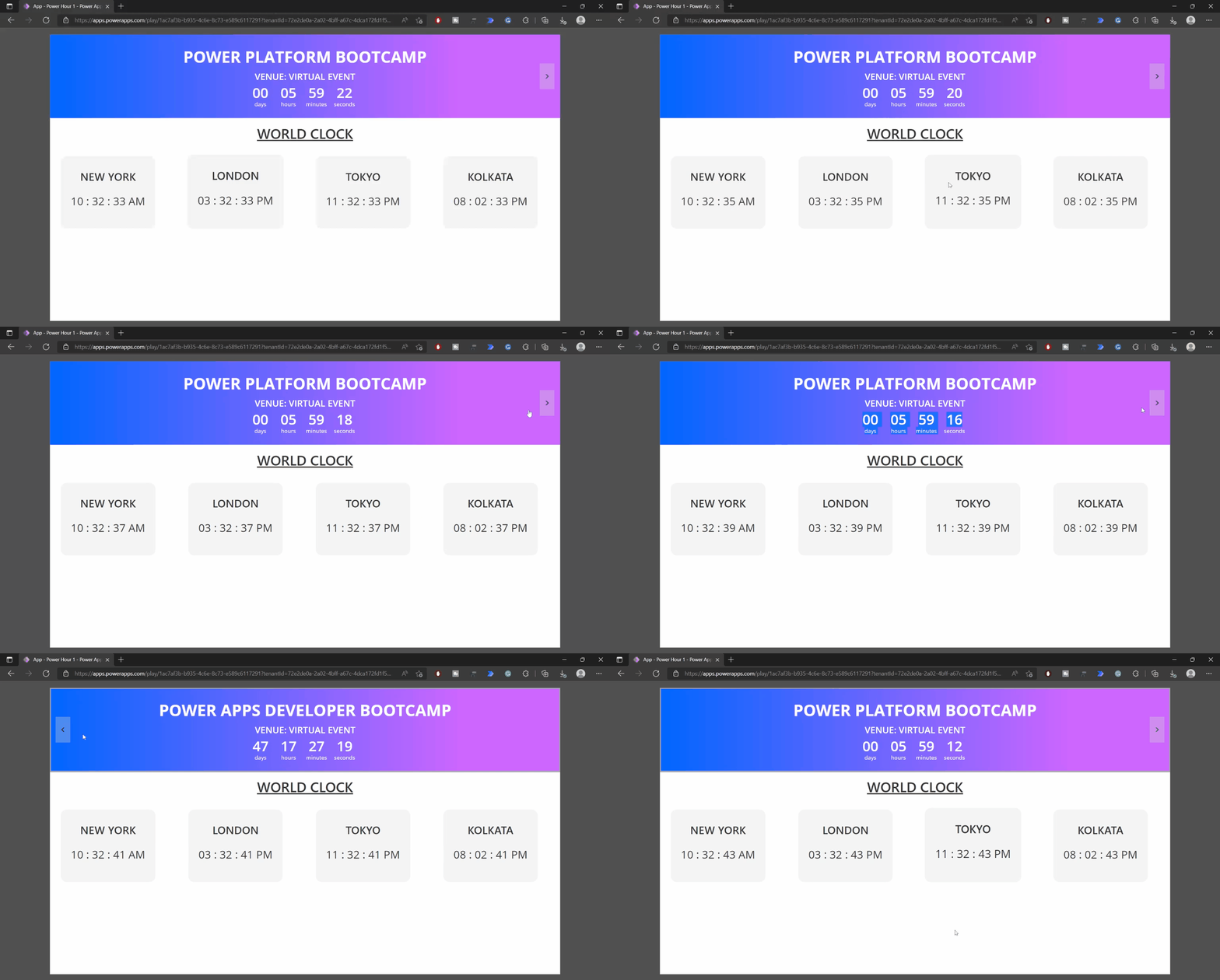
Show live time or count down timer in Power Apps
Hello there! In today’s blog post, we’re going to learn a simple way to show Date-Time values in realtime using timer control.
Let’s look at the case scenario!
We are hosting a few events and want to show the countdown timer for those events. At the same time, we would also like to show the current time in different timezones.
To achieve this, we’re going to use a variable to keep track of the current time and then we’ll use keep updating that variable using Timer control. Let’s look at the steps!
1. First, lets create a new variable at OnVisible property of the screen, and set it to current date-time

2. Next, lets add a Timer control to the screen

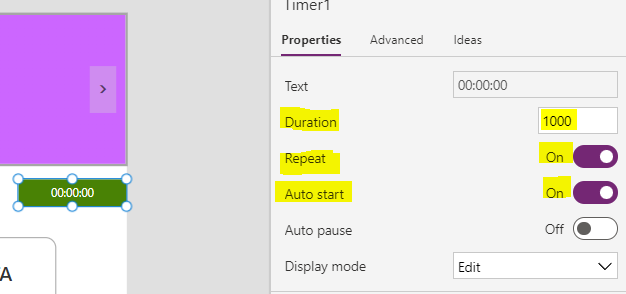
3. Now, Configure the Timer control to set the “Duration” to “1000”, and then enable “AutoStart” and “Repeat”, as we want to keep running and resetting the timer every second.
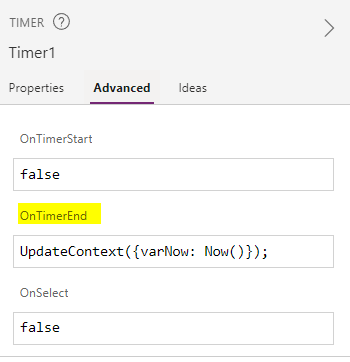
4. Then at “OnTimerEnd” property, we will update our time variable to keep track of the current date-time
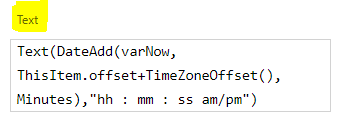
5. Finally, we can use the date-time variable in our labels to get live time or count downs
Let’s see how it works!!