SharePoint Online file deletion approval flow
Hello there! Today we’re going to see how to perform file deletions, in SharePoint Online document library, with approval process using Power Automate.
Let’s have a look at the case scenario!
We have a document library on our SharePoint site, users are provided with “Read” and “Contribute without delete” access. Now the users generally keep reaching out to the site owners/ admins frequently to delete a specific file which is no longer needed in that library. Our task is now to build a flow, which will automate the approval and deletion process.
- First, let’s go to flow portal and create a new “Instant” flow, using the trigger “For a Selected File”
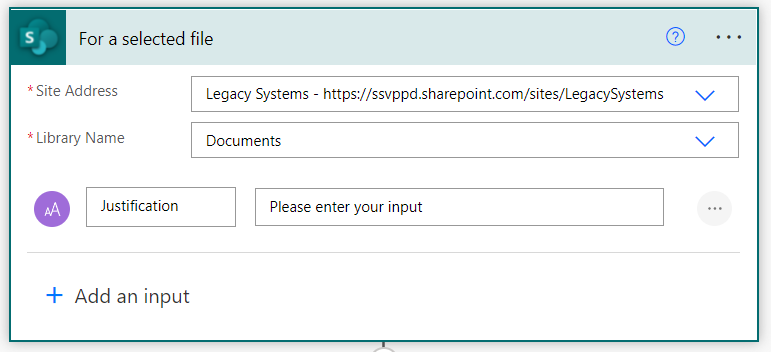
- Now let’s configure the trigger and point it to the Document library we want, add a justification input for our file deletions.
- First, let’s get the file properties using the ID from the trigger using “Get File Properties”

- Next we’ll save all the details of this deletion request into a SharePoint list for tracking all of our deletion requests
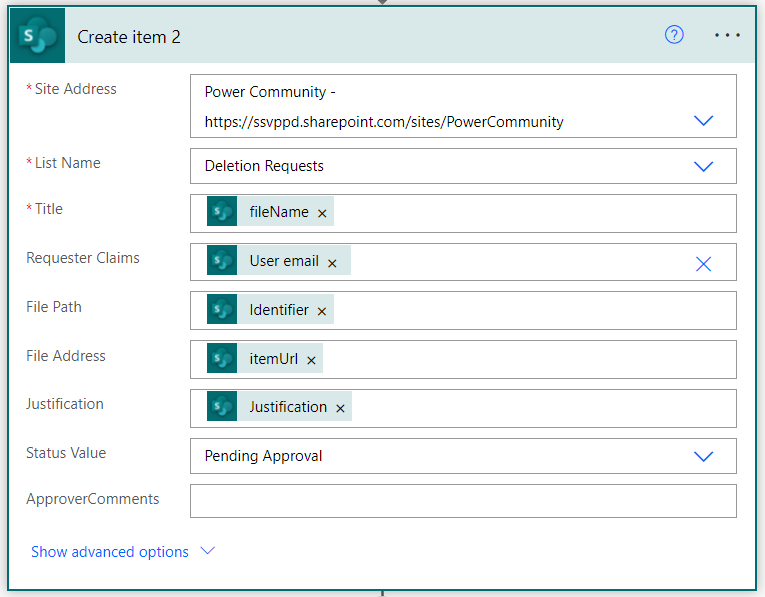
- All the properties come from the trigger itself, the only different input would be the File Path, which we’re getting from the “Get File Properties” action.
- Now that the details are saved, let’s go ahead and send an approval to the admin to decide whether to delete the file or retain it
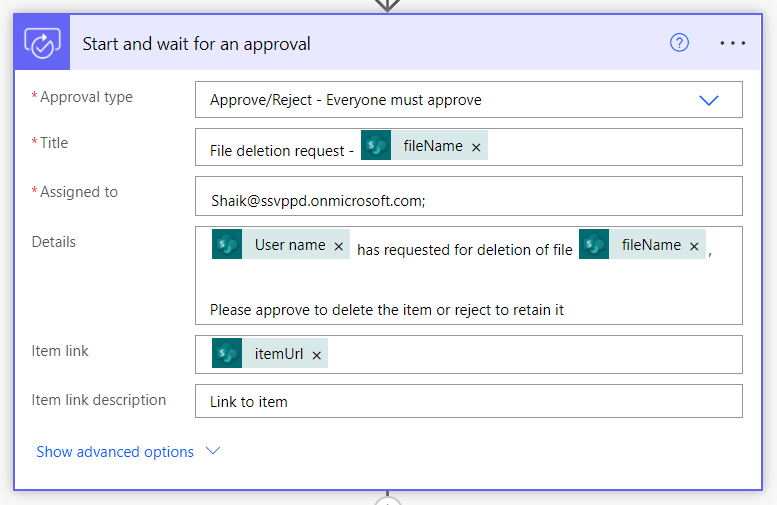
- I’m also sending the file link using the “Item link” properties so that the approver can check the file if needed.
- Once the approval is done, based on the outcome, we will update the status of our deletion request back to the tracking list
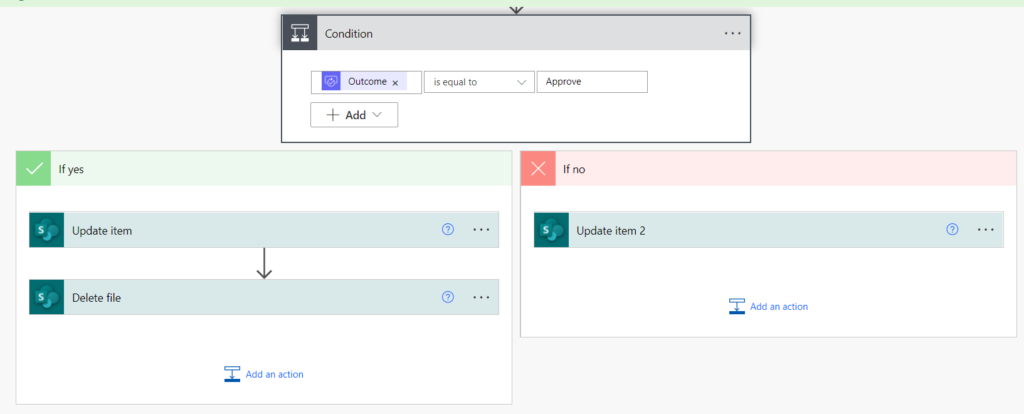
- For the approval case, I’m adding an additional step to delete the file. We can use the Identifier from the “Get File Properties” action and use it for “File Identifier” input
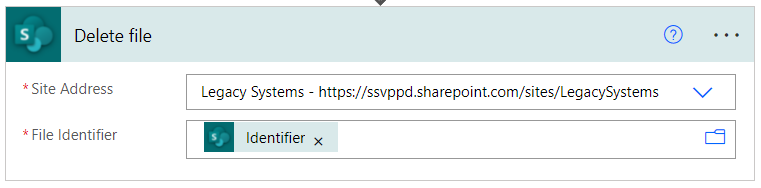
There we go, it’s all done and ready for testing!
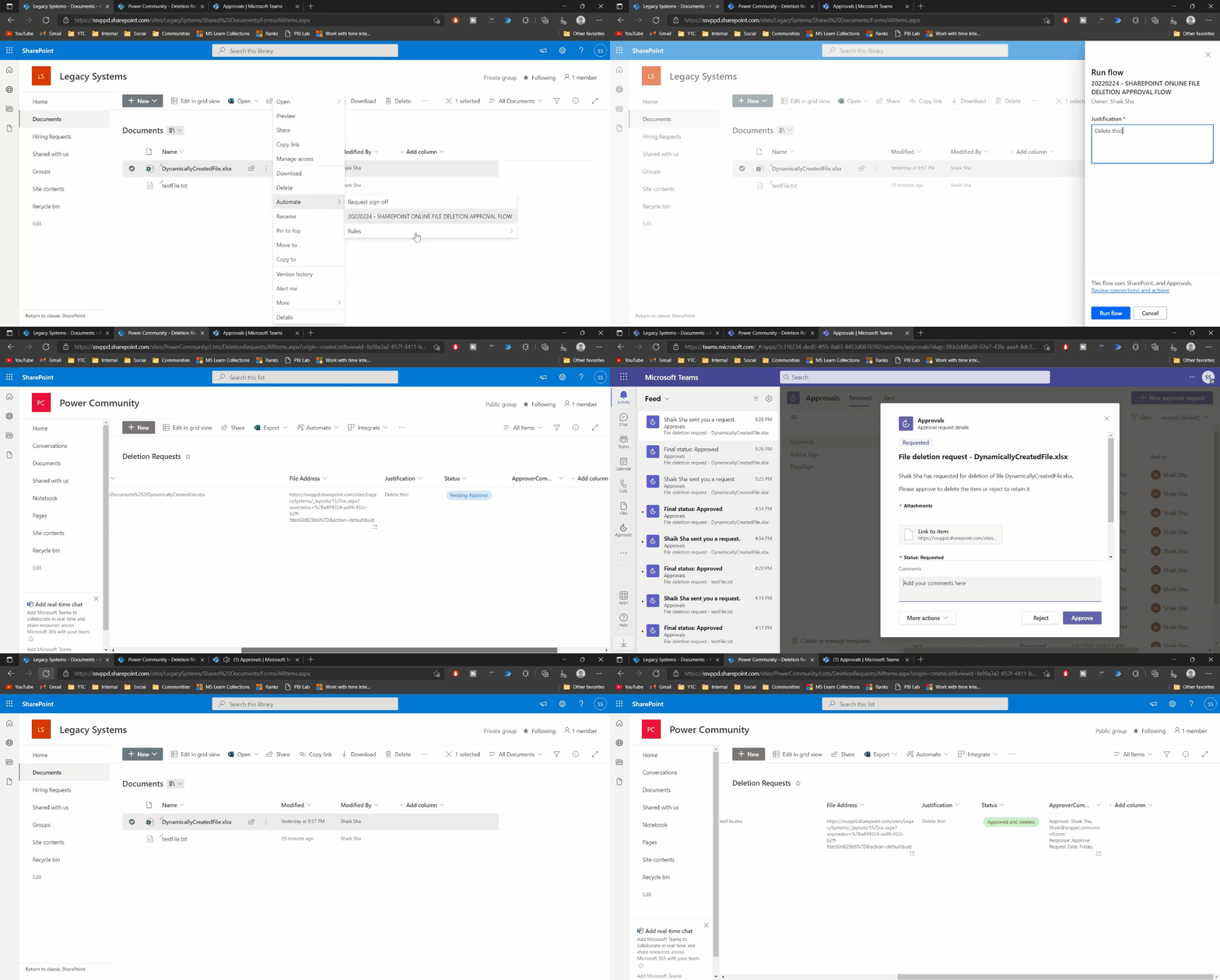
Check the below gif to see how it worked!
2 Comments
Shathik
I tired but its not working as per above steps, please guide me
Shathik
HI Mr. Shaik,
Please send video tutorial for this flow for when a file deleted from SharePoint. Thanks